Pages for this project
- General
- Administrators
- Developers
SplameiPlay from time-to-time might run into an issue or error that needs your attention. Sometimes this will be a dialogue box or toast message though SplameiPlay will keep running (temporary issue – soft issue) or a full error screen stopping SplameiPlay from running before the app automatically closed (error screen – hard issue). You can see information about how to troubleshoot those issues below.
Temporary issues
If you just see an error message when using SplameiPlay but you can keep using the app, it means something minor went wrong behind the scenes but SplameiPlay can keep going. In most cases, you can get away with not needing to do anything as SplameiPlay will usually fix this when it occurs, after a relaunch or a system restart. Sometimes, though unlikely, you may keep seeing the same error(s), if so, try these steps to fix it:
- Updating SplameiPlay, your device and drivers
- You can learn about updating SplameiPlay here
- If your on Windows, this can be done via Windows Update on most systems
- On Linux, use the package manager(s) installed on your system to update everything (i.e. apt on Debian)
- Restart your device
- Sometimes, all that’s needed is to restart your device, especially if it remains turned on for long periods of time
- Check you have enough disk space
- If your device is low on storage, especially on the
C:drive, it could cause issues with how SplameiPlay functions so try clean up some files and delete them to free up space
- If your device is low on storage, especially on the
- Check for conflicting apps
- Other apps may be using some files and functions that SplameiPlay needs which could prevent the app from running, so try closing some apps, one-by-one, until the issue gets fixed to find the app causing issues.
- Reinstall SplameiPlay
- Something may be wrong with your SplameiPlay install that’s causing the issue, so try removing SplameiPlay from your device via ‘Windows Settings > Apps > Installed Apps > SplameiPlay > Uninstall’ then reinstall the app using the latest installer found on the download page
- Reinstall Windows
- Though highly unlikely, Windows may be configured incorrectly causing issues with SplameiPlay so you’ll need to reinstall it. You can do this via Settings or via a USB
- Careful! If you reinstall Windows, you may loose your files so make a backup before trying this step!
If this doesn’t fix your issue, please contact us for support via email or make an issue on our GitHub to additionally help others with the same issue.
If you’re a developer, system administrator or programmer, you might want to try reading the error code page for advanced information on each error code.
Error screen
Sometimes, a major issue could occur within SplameiPlay’s code which forces the app to stop running and show an error screen like what’s shown below. SplameiPlay will display the code and script/class that caused the error to help debug the error.
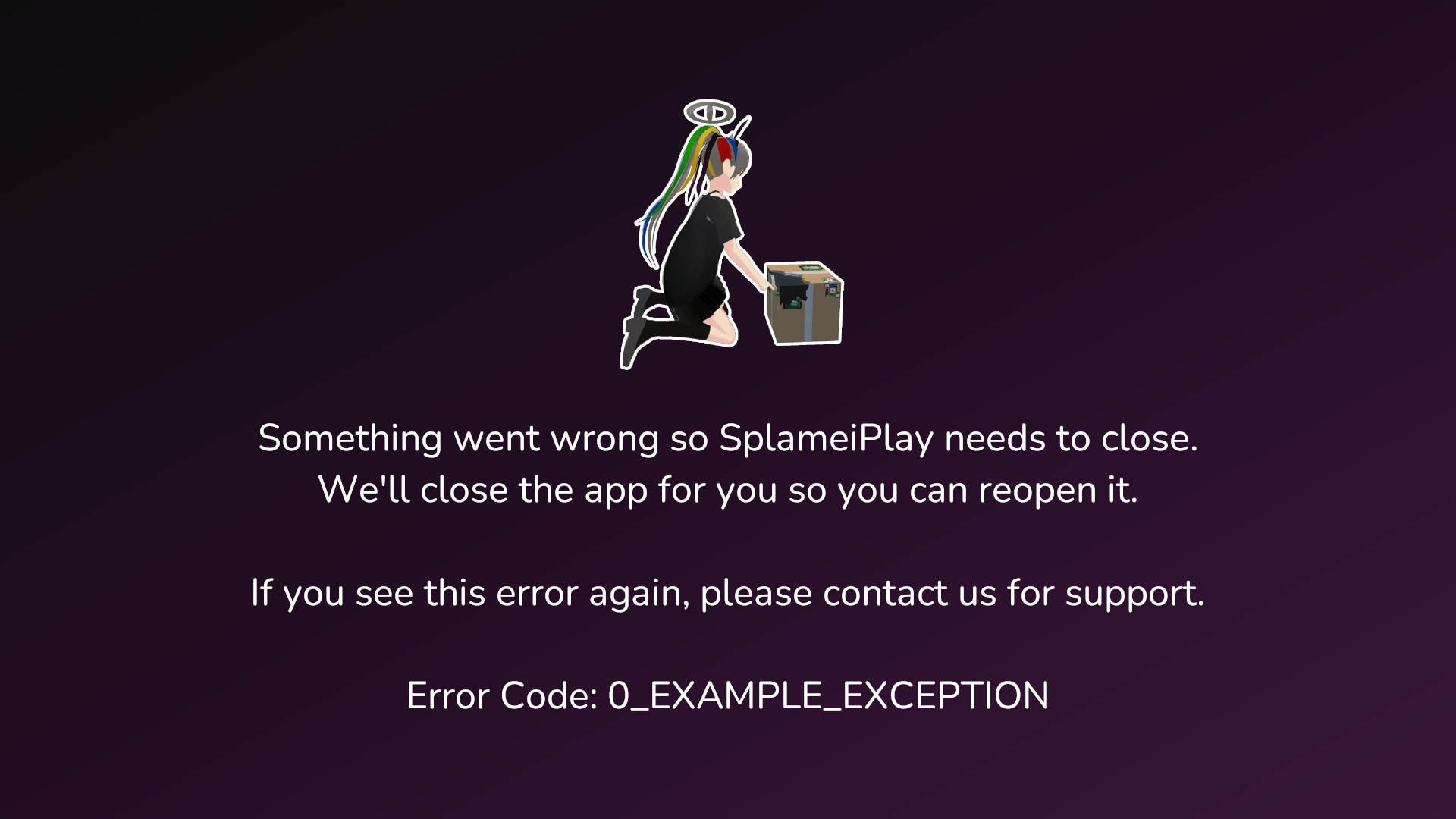
In most cases, you won’t see the same error again as SplameiPlay would internally repair itself to prevent another error, in some other cases, the issue will persist and requires manual troubleshooting. If you see the error screen multiple times, you can try the following steps:
- Updating SplameiPlay, your device and drivers
- You can learn about updating SplameiPlay here
- If your on Windows, this can be done via Windows Update on most systems
- On Linux, use the package manager(s) installed on your system to update everything (i.e. apt on Debian)
- Restart your device
- Sometimes, all that’s needed is to restart your device, especially if it remains turned on for long periods of time
- Check you have enough disk space
- If your device is low on storage, especially on the
C:drive, it could cause issues with how SplameiPlay functions so try clean up some files and delete them to free up space
- If your device is low on storage, especially on the
- Check for conflicting apps
- Other apps may be using some files and functions that SplameiPlay needs which could prevent the app from running, so try closing some apps, one-by-one, until the issue gets fixed to find the app causing issues.
- Reinstall SplameiPlay
- Something may be wrong with your SplameiPlay install that’s causing the issue, so try removing SplameiPlay from your device via ‘Windows Settings > Apps > Installed Apps > SplameiPlay > Uninstall’ then reinstall the app using the latest installer found on the download page
- Reinstall Windows
- Though highly unlikely, Windows may be configured incorrectly causing issues with SplameiPlay so you’ll need to reinstall it. You can do this via Settings or via a USB
- Careful! If you reinstall Windows, you may loose your files so make a backup before trying this step!
If this doesn’t fix the issue, please contact us for support via email or make an issue on our GitHub to additionally help others with the same issue.
If you’re a developer, system administrator or programmer, you might want to try reading the error code page for advanced information on each error code.