Pages for this project
Installing SplameiPlay
To start using SplameiPlay, you’ll need to download it. You can download it via our official website. The download page should automatically detect your device’s platform and direct you to the right place
Installing on Windows
Once downloaded via the Windows download page, find where you downloaded the installer and open it. If warned by Windows SmartScreen, press ‘More Info’ then ‘Run anyway’. Afterwards, follow the setup instructions to get SplameiPlay installed.
You will need administrator permissions to install SplameiPlay. If you cannot run the installer as admin or pass User Account Control (UAC), you won’t be able to install SplameiPlay.
Make sure you’re downloading SplameiPlay from an official source (currently veemo.uk) to prevent compromising your device
After the installer finished the install, SplameiPlay Update should open. This will install the main SplameiPlay app. You’ll need an active internet connection for the download to complete. After SplameiPlay Update has finished, it will automatically open SplameiPlay for you.
Installing on Linux
SplameiPlay has only been tested on Debian Linux so you may experience issues on other distributions. We’re working our best to test the app on other platforms and devices.
To install SplameiPlay on Linux, it’s as easy as running the command below:
curl -fsSL https://www.veemo.uk/flow/1.2/splameiplay/update/linux/install.sh | bash
Copy to clipboard
You’ll need to have
curlinstalled and bash installed to/bin/bashto use SplameiPlayYou can view the scripts used by SplameiPlay Update (Linux) on it’s official GitHub repo found here
This will download and install SplameiPlay Update (Linux) to your system then automatically install SplameiPlay mainline afterwards. Once it’s done, you’ll see this message:
------------------------------------------------------------------------

         SplameiPlay has been installed and is ready for use!
You can launch SplameiPlay via the app menu or the command 'splameiplay'

                 Thank you for choosing SplameiPlay!

------------------------------------------------------------------------
You can now launch SplameiPlay via the splameiplay command or the application menu (if your Desktop Environment reads from /usr/share/applications)
Setting up SplameiPlay
On your initial launch of SplameiPlay (5.0 Particle), you’ll see the welcome screen. This will allow you to configure parts of SplameiPlay, like the theme, to your liking. This shouldn’t take long and will only be shown when you initially launch SplameiPlay and sometimes after a new screen was added/changed in the welcome screen.
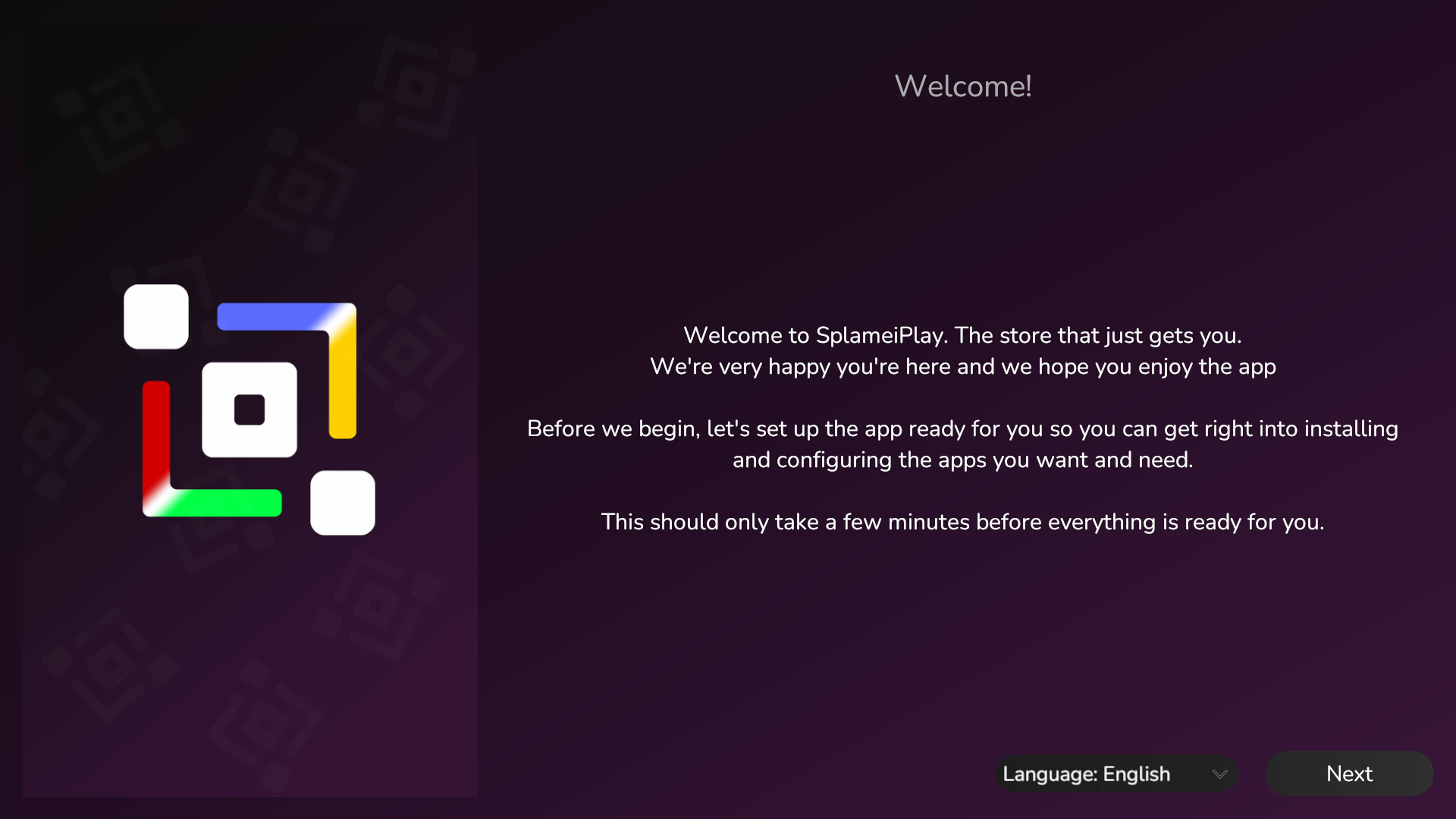
The welcome screen will also allow you to schedule the graphic preset test. This will allow your projects to know what graphic preset they should use without you needing to manually set it yourself. See here for more information.
After you finished the welcome (and if scheduled, graphic preset) screens, you will be taken to the home screen. Check out the page about navigating SplameiPlay for more info.
Uninstalling the app
Uninstalling on Windows
If you no longer want to use SplameiPlay, you can uninstall the app. This can be done by:
- Open ‘Windows Settings’
- Select ‘Apps’ in the sidebar
- Select ‘Installed Apps’
- Search or find SplameiPlay in the list
- Press the ‘Uninstall’ button twice
- Accept the User Account Control prompt
- You need admin permissions to remove SplameiPlay
- Confirm you want to remove SplameiPlay
Once you’ve done this, SplameiPlay will be removed from your device
Uninstalling on Linux
To uninstall SplameiPlay, you can either manually delete the files created from the install log file or run our automated script to delete them and other directories. You can run the automated script with this command:
curl -fsSL https://www.veemo.uk/flow/1.2/splameiplay/update/linux/remove.sh -o splameiplay-remove.sh && chmod +x ./splameiplay-remove.sh && ./splameiplay-remove.sh && rm splameiplay-remove.sh
Copy to clipboard
This will delete every file in the install log (found in /var/log/splameiplay-install-files.log) and some extra directories that the installer creates.
When uninstalling SplameiPlay on Linux, it’s best you reboot your system so the removal can take full effect. This may not be required on some setups