Pages for this project
Updating
Periodically, we’ll update SplameiPlay to add new features and fix some bugs. When SplameiPlay notices that there is a new update, you’ll see a similar screen like this:
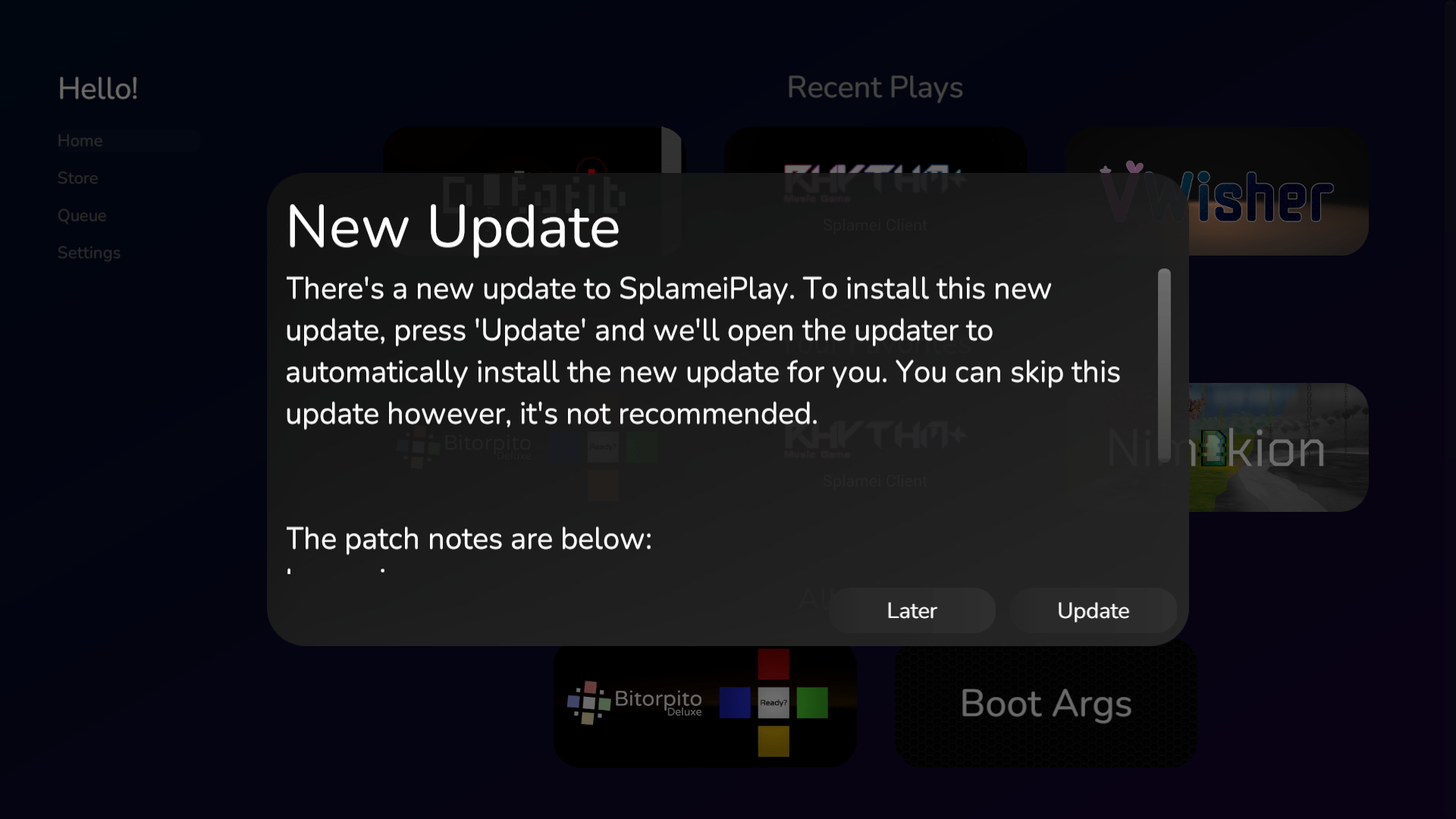
To prevent issues and problems with SplameiPlay, it’s recommended to update SplameiPlay when there is a new update
Updating on Windows
Pressing ‘Update’ when using Windows will launch SplameiPlay Update and update SplameiPlay. The app will close, update then re-open for you
Updating on Linux
On Linux, close SplameiPlay and run the following command in your preferred terminal app: splameiplay-update. This will download and install the files needed for SplameiPlay to run. Once done, you can re-open the app.
Checking the installed version
To see the version of SplameiPlay you have installed, scroll to the end of the settings page. You can see the current version of SplameiPlay, the version name and build date. For example:
SplameiPlay Version: 5.0 Particle
This build was made on: 05/03/2026
The build date is in the DD/MM/YYYY format and will not change regardless of your current locale