Pages for this project
Installing SplameiPlay
To start using SplameiPlay, you’ll need to download it. You can download it via our official website.
Once downloaded, find where you downloaded the installer and open it. If warned by Windows SmartScreen, press ‘More Info’ then ‘Run anyway’. Afterwards, follow the setup instructions to get SplameiPlay installed.
You will need administrator permissions to install SplameiPlay. If you cannot run the installer as admin or pass User Account Control (UAC), you won’t be able to install SplameiPlay.
Make sure you’re downloading SplameiPlay from an official source (currently veemo.uk) to prevent compromising your device
After the installer finished the install, SplameiPlay Update should open. This will install the main SplameiPlay app. You’ll need an active internet connection for the download to complete. After SplameiPlay Update has finished, it will automatically open SplameiPlay for you.
Setting up SplameiPlay
On your initial launch of SplameiPlay (5.0 Particle), you’ll see the welcome screen. This will allow you to configure parts of SplameiPlay, like the theme, to your liking. This shouldn’t take long and will only be shown when you initially launch SplameiPlay and sometimes after a new screen was added/changed in the welcome screen.
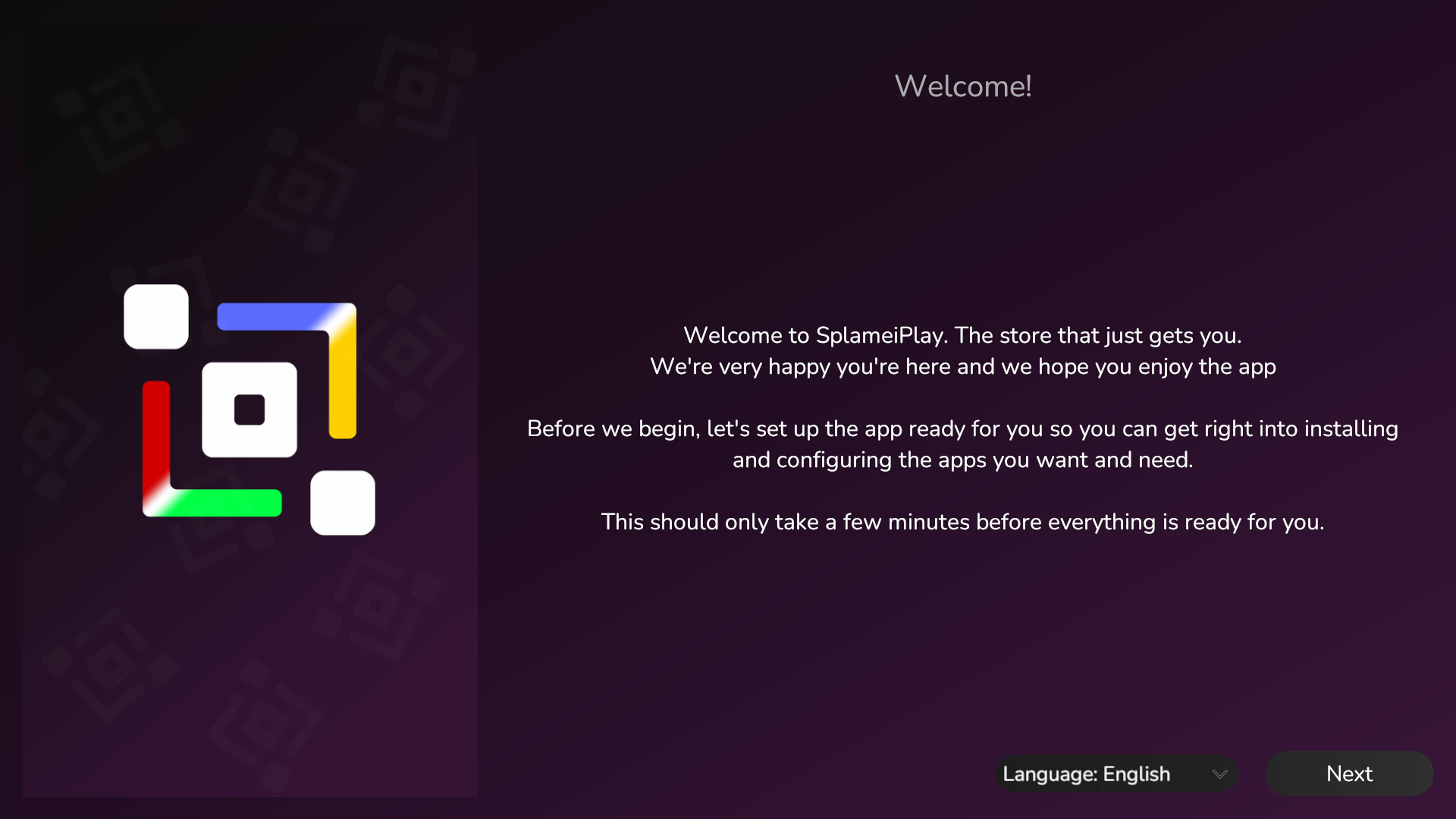
The welcome screen will also allow you to schedule the graphic preset test. This will allow your projects to know what graphic preset they should use without you needing to manually set it yourself. See here for more information.
After you finished the welcome (and if scheduled, graphic preset) screens, you will be taken to the home screen. Check out the page about navigating SplameiPlay for more info.
Uninstalling the app
If you no longer want to use SplameiPlay, you can uninstall the app. This can be done via one of these ways:
— Uninstall App —
When in the start menu, find the SplameiPlay folder and open the app named ‘Uninstall SplameiPlay’. This will uninstall SplameiPlay and remove it’s folder.
— Settings —
When in Windows Settings, navigate to Apps and find SplameiPlay. You should be able to press the Uninstall button to uninstall the app
— Control Panel —
You may not be able to use this method on future versions of Windows. If so, please use the Uninstall App or Windows Settings
Open Control Panel > ‘Uninstall a program’ and find SplameiPlay. When selecting it, you should be able to press the ‘Uninstall’ button on the top-left of the main view.