Pages for this project
- General
- Administrators
- Developers
Updating
Periodically, we’ll update SplameiPlay to add new features and fix some bugs. When SplameiPlay notices that there is a new update, you’ll see a similar screen like this:
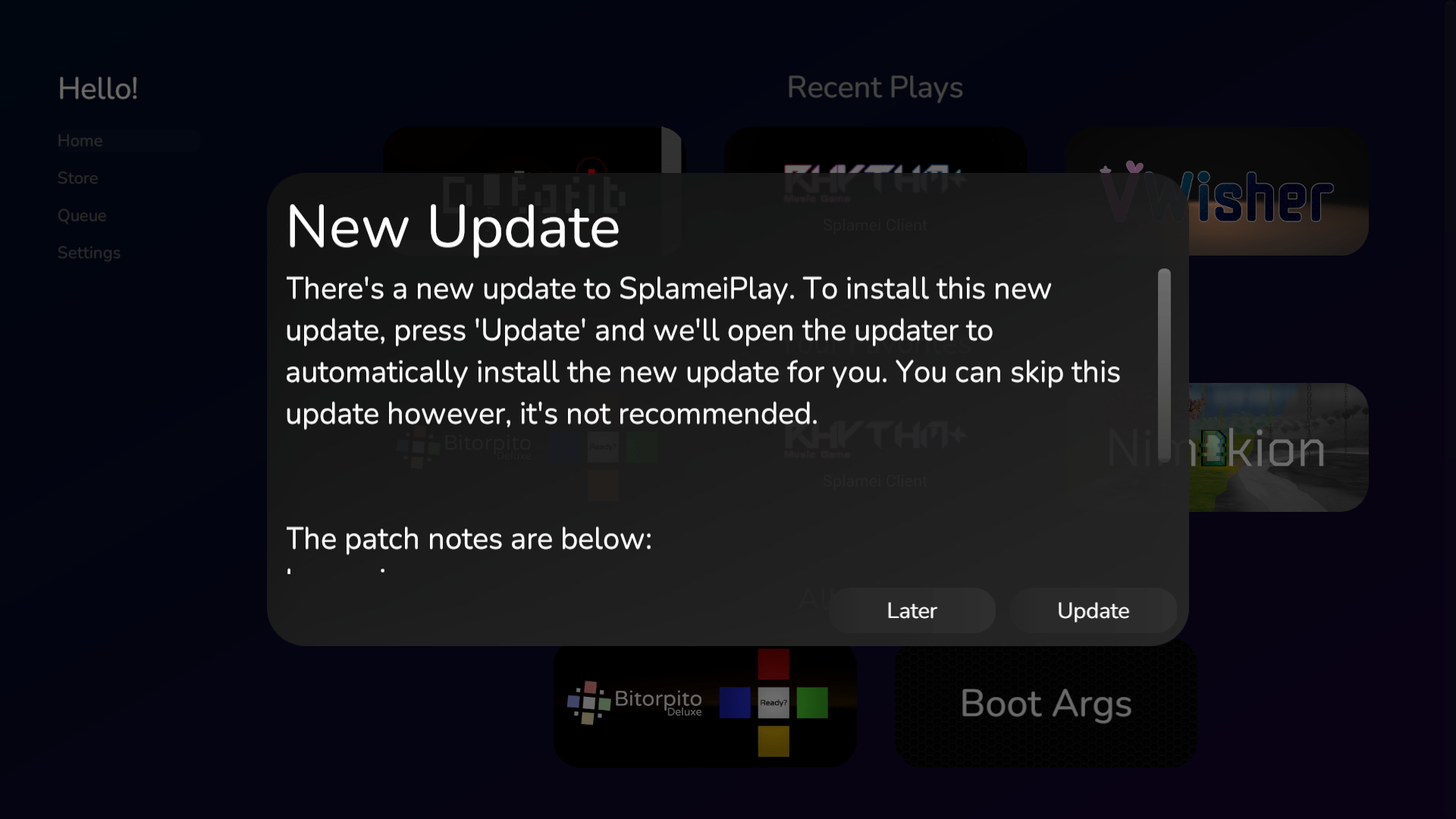
To prevent issues and problems with SplameiPlay, it’s recommended to update SplameiPlay when there is a new update
Pressing ‘Update’ will launch SplameiPlay Update and update SplameiPlay. The app will close, update then re-open for you. Usually SplameiPlay Update will update SplameiPlay automatically before the main app opens.
Checking the installed version
To see the version of SplameiPlay you have installed, scroll to the end of the settings page. You can see the current version of SplameiPlay, the version name and build date. For example:
SplameiPlay Version: 5.0 Particle
This build was made on: 05/03/2026
The build date is in the DD/MM/YYYY format and will not change with the language setting
Troubleshooting
Sometimes, SplameiPlay may have an issue that means something has gone wrong. These could result in SplameiPlay needing to close and showing the following screen
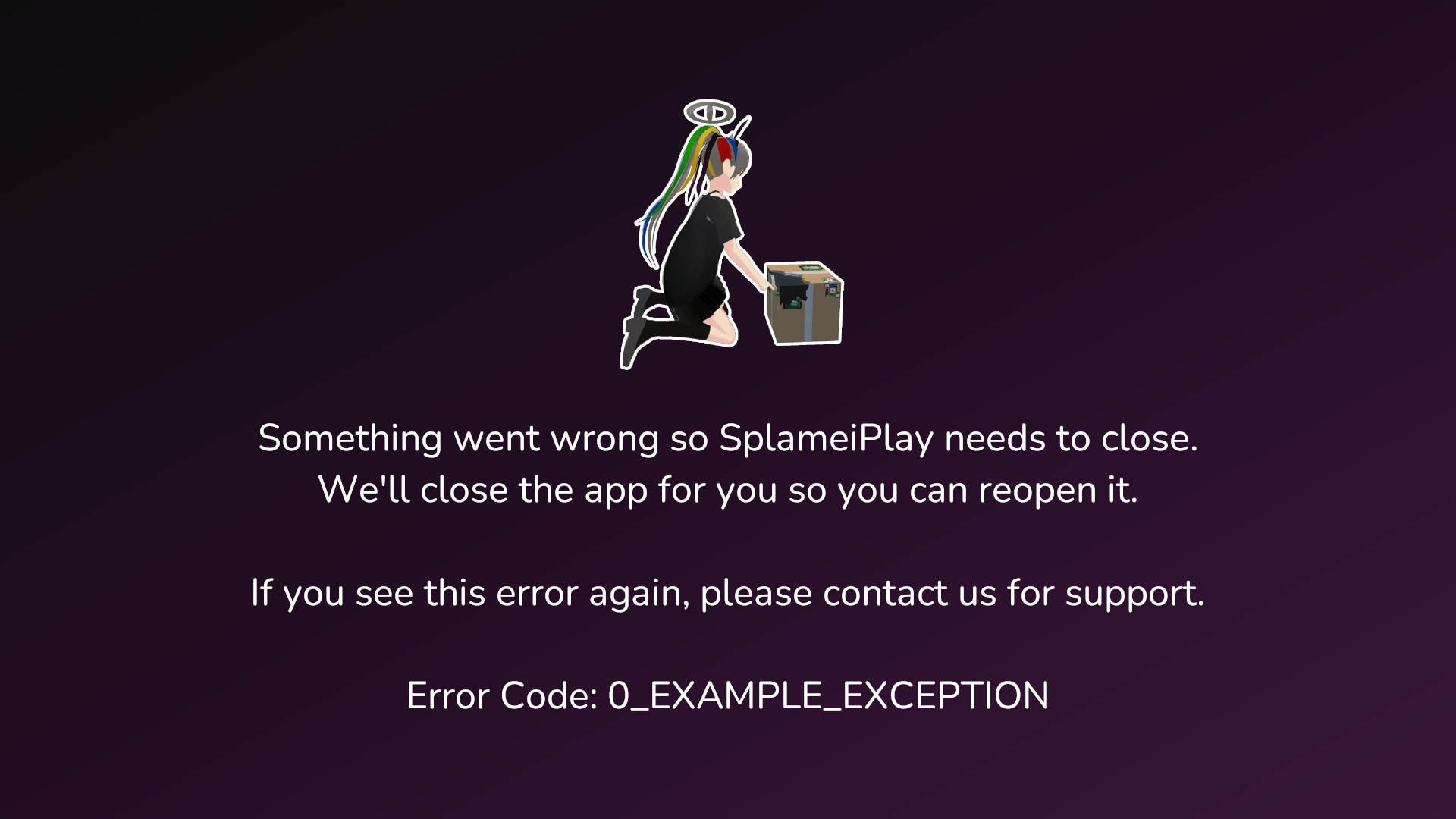
If something goes wrong, you could try these options to fix it:
- Restart SplameiPlay
- Reboot your device
- Update SplameiPlay (if there’s an update)
- Re-install SplameiPlay
If those options don’t work, something may be really wrong with your SplameiPlay install. If so, please contact us for support via email or Discord. If you understand the technical side of computer and SplameiPlay, you can check out the error codes page for in-depth reasons of each error.